If you’ve ever enabled aggressive DNS blocking and suddenly found Instagram links broken, Google logins failing, or TikTok videos refusing to load, you’re not alone.
Many users switch to DNS filtering services like NextDNS for better privacy and scam protection, only to discover that modern apps heavily depend on trackers, analytics domains, and third-party services to function properly.
The good news is that you do not need to choose between privacy and usability.
In this guide, you’ll learn how to configure NextDNS for:
- strong scam and phishing protection,
- social media compatibility,
- smoother streaming and app usage,
- and a low-maintenance experience.
This setup is especially useful for users who:
- use Instagram, Facebook, TikTok, Discord, YouTube, Spotify, or Google login,
- browse frequently on mobile devices,
- use VPNs or Tailscale,
- and want better security without constant troubleshooting.
Why Some NextDNS Setups Break Social Media
Modern social media platforms rely on many external domains for:
- login systems,
- embedded media,
- analytics,
- content delivery networks (CDNs),
- and anti-spam verification.
Aggressive blocklists or advanced privacy settings can accidentally block these services.
Common symptoms include:
- Instagram links not opening,
- “Something went wrong” errors,
- Google or Facebook login failures,
- videos not loading,
- broken previews,
- CAPTCHA loops,
- or delayed notifications.
A balanced setup avoids these issues while still blocking scams, malware, trackers, and phishing domains.
Best NextDNS Blocklists for Social Media Compatibility
One of the biggest mistakes users make is enabling too many overlapping blocklists.
For most people, the ideal setup is simple.
Recommended Blocklists
1. NextDNS Ads & Trackers Blocklist
This is the best starter blocklist because it:
- blocks most ads and trackers,
- has excellent compatibility,
- rarely breaks apps,
- and is actively maintained.
Recommended: Enabled
2. OISD
OISD is widely respected because it focuses heavily on reducing false positives and app breakage.
Benefits include:
- strong ad blocking,
- smart allowlisting,
- fewer broken apps,
- and smoother mobile performance.
Recommended: Enabled
Blocklists to Avoid Combining
Do not stack too many aggressive lists together.
Avoid combinations like:
- OISD + hBlock + AdGuard Tracking Protection,
- plus advanced tracker blocking features.
This often causes:
- broken social logins,
- streaming problems,
- missing comments,
- and random mobile app errors.
The Most Important Setting to Disable
Disable “Block Disguised Third-Party Trackers”
This setting targets CNAME cloaking and advanced tracking methods.
While useful for privacy enthusiasts, it can interfere with:
- Facebook login,
- Google sign-in,
- TikTok embeds,
- affiliate redirects,
- and social media previews.
For a smoother experience:
- keep this setting OFF.
This single change resolves many compatibility problems.
Recommended Security Settings for Daily Browsing
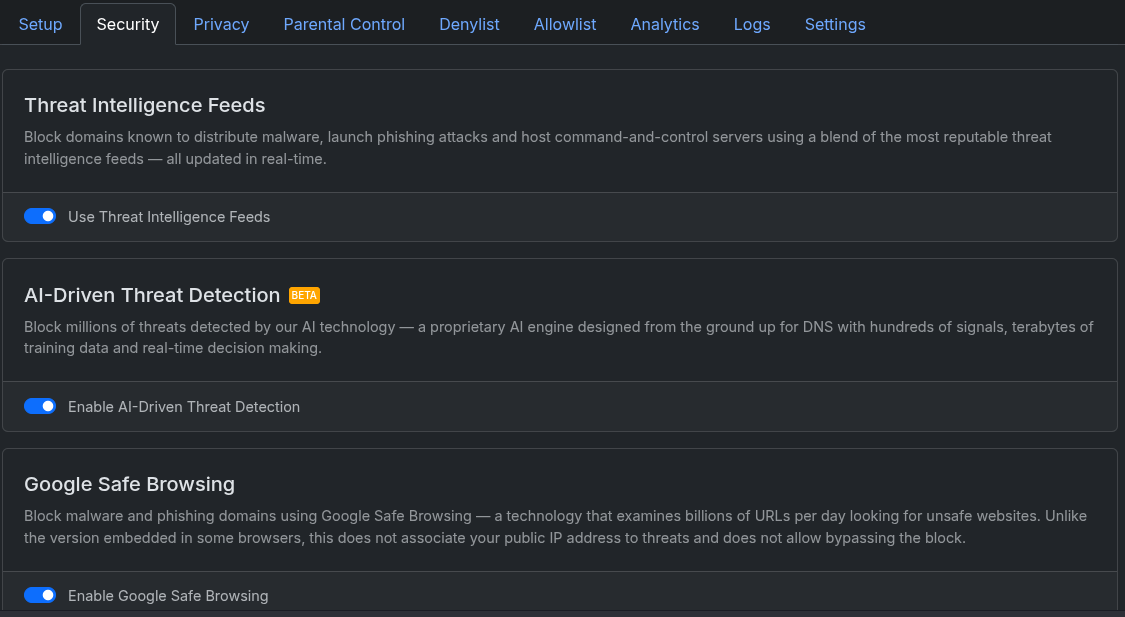
NextDNS includes excellent security tools that protect against scams, phishing, malware, and fake websites.
The good news is that most of them are safe to enable without breaking social media.
Recommended Security Features to Enable
Threat Intelligence Feeds — ON
This blocks:
- phishing websites,
- malware domains,
- scam infrastructure,
- and command-and-control servers.
Highly recommended.
AI-Driven Threat Detection — ON
The AI system helps detect:
- new scam domains,
- fake shopping sites,
- malicious shortened URLs,
- and emerging phishing campaigns.
Recommended for most users.
Google Safe Browsing — ON
This adds another layer of protection against:
- fake login pages,
- dangerous downloads,
- and malicious websites.
Compatibility impact is minimal.
Cryptojacking Protection — ON
Blocks hidden cryptocurrency mining scripts.
Safe to enable.
DNS Rebinding Protection — ON
Protects local devices from certain network attacks.
Safe for home users.
Homograph Attacks Protection — ON
Protects against fake domains that imitate real websites using lookalike characters.
Example:
- fake “apple.com” domains using Cyrillic letters.
Strongly recommended.
Typosquatting Protection — ON
Blocks fake domains designed to trick users into mistyped addresses.
Useful against:
- fake banking websites,
- phishing pages,
- and scam login portals.
DGA Protection — ON
Blocks malware-generated domains used for command-and-control communication.
Safe to enable.
Security Features Best Left Disabled
Block Newly Registered Domains (NRDs) — OFF
While many scams use newly registered domains, legitimate services do too.
This feature can break:
- startup websites,
- payment gateways,
- app redirects,
- and promotional campaigns.
For everyday browsing, it is usually better disabled.
Block Dynamic DNS Hostnames — OFF
This may interfere with:
- self-hosted services,
- NAS devices,
- remote access tools,
- VPN-related services,
- and networking setups like Tailscale.
Unless you manage a highly restricted network, keep this disabled.
Recommended Setup for Tailscale Users
If you use Tailscale together with NextDNS, avoid enabling:
- Block Bypass Methods,
- aggressive DNS restrictions,
- or excessive anti-VPN filtering.
These features can sometimes interfere with:
- MagicDNS,
- encrypted DNS,
- or VPN routing.
A stable setup usually includes:
- NextDNS as the DNS provider,
- OISD or NextDNS Ads & Trackers,
- and standard security protections enabled.
How to Name Devices Properly in NextDNS
If your analytics show:
"clientName": "unknown-doh"
that is normal when using encrypted DNS.
You can still assign friendly device names by using:
https://dns.nextdns.io/YOUR_ID/device-name
Example:
https://dns.nextdns.io/abcd12/chromedefault
This helps organize analytics and logs more clearly.
Recommended Final NextDNS Configuration
Privacy
- NextDNS Ads & Trackers: ON
- OISD: ON
- Block Disguised Third-Party Trackers: OFF
- Block Bypass Methods: OFF
Security
- Threat Intelligence Feeds: ON
- AI-Driven Threat Detection: ON
- Google Safe Browsing: ON
- Cryptojacking Protection: ON
- DNS Rebinding Protection: ON
- Homograph Attacks Protection: ON
- Typosquatting Protection: ON
- DGA Protection: ON
- Block Newly Registered Domains: OFF
- Block Dynamic DNS Hostnames: OFF
This setup gives an excellent balance between:
- privacy,
- security,
- usability,
- and social media compatibility.
Final Thoughts
The best NextDNS setup is not the most aggressive one.
Many users enable every possible protection setting, only to create constant app breakage and browsing frustration.
A balanced configuration provides:
- strong phishing protection,
- scam prevention,
- malware blocking,
- and tracker reduction,
without breaking the apps and websites you use every day.
For most users, combining:
- NextDNS Ads & Trackers,
- OISD,
- and the recommended security settings above
creates a reliable and user-friendly setup that works well across desktops, phones, social media apps, streaming services, and VPN environments.
FAQ
Does NextDNS break Instagram or Facebook?
It can if aggressive settings are enabled. Features like “Block Disguised Third-Party Trackers” or overly aggressive blocklists may interfere with social media services.
Which blocklist is best for NextDNS?
For most users:
- NextDNS Ads & Trackers
- and OISD
offer the best balance between privacy and compatibility.
Is OISD better than AdGuard DNS filter?
OISD is generally more compatibility-focused and causes fewer false positives. AdGuard DNS filter is stronger but can occasionally break services.
Should I enable Block Newly Registered Domains?
Not for most users. It can block legitimate modern websites and cause browsing inconvenience.
Is “unknown-doh” in NextDNS normal?
Yes. It simply means NextDNS cannot automatically identify the application sending encrypted DNS requests.
Does NextDNS work with Tailscale?
Yes. NextDNS works very well with Tailscale when configured properly. Avoid overly restrictive anti-VPN or DNS bypass settings for the best compatibility.