Did your computer suddenly run out of storage space? You are not alone. Google Chrome has quietly started downloading a massive 4 GB AI model file called weights.bin onto users’ hard drives. This file powers Chrome’s built-in “Gemini Nano” AI features.
If you do not use Chrome’s AI tools, this file is completely wasting your precious SSD space.
Delete Chrome’s Hidden 4GB AI weights.bin File (and Stop It From Coming Back)
I noticed my own drive space shrinking and tracked down the culprit. In this guide, I will show you exactly how to delete the weights.bin file and—more importantly—how to block Chrome from silently downloading it again.
The Catch: Why You Can’t Just Press Delete
If you simply find the file and delete it, Google Chrome will notice it is missing and automatically re-download it the next time you launch the browser.
To reclaim your 4 GB permanently, you must follow these three steps in the exact order listed below.
Step 1: Turn Off Chrome’s On-Device AI Features
First, we need to tell Chrome that you do not want to use its built-in AI tools.
- Open Google Chrome.
- Click the three-dot menu in the top-right corner and select Settings.
- Click System in the left-hand sidebar.
- Locate the On-device AI setting and toggle it to Off.
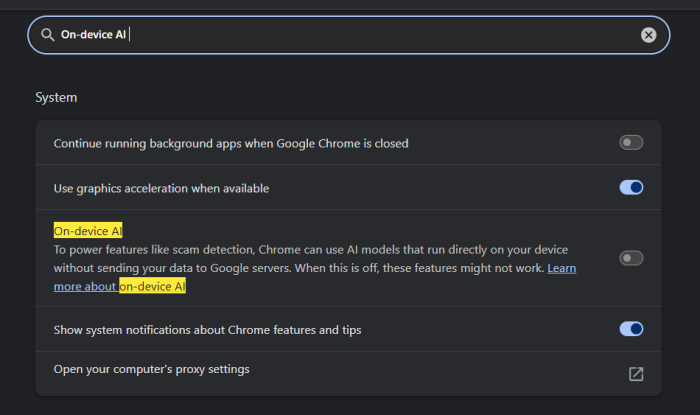
Note: If you do not see this toggle in your settings menu, don’t worry. Just move directly to Step 2.
Step 2: Disable the Hidden AI Download Flags
Chrome uses hidden experimental settings called “Flags” to control background downloads. We need to disable these to block the AI model from returning.
- Type
chrome://flagsinto your Chrome address bar and hit Enter. - Use the search bar at the top of the page to find
#optimization-guide-on-device-model. - Click the dropdown menu next to it and select Disabled.
- Next, search for
OnDeviceModelBackgroundDownload. - Change this dropdown to Disabled as well.
- Click the blue Relaunch button at the bottom of the screen to restart Chrome and apply the changes.
Step 3: Manually Delete the weights.bin File
Now that Chrome is blocked from downloading the file, we can safely wipe it from your hard drive.
- Close Google Chrome completely.
- Open your system’s file explorer and navigate to the Chrome data folder:
- Windows users: Press
Windows Key + R, paste the following line, and hit Enter:%LOCALAPPDATA%\Google\Chrome\User Data - Mac users: Open Finder, press
Command + Shift + G, paste the following path, and click Go:~/Library/Application Support/Google/Chrome
- Windows users: Press
- Look for a folder named OptGuideOnDeviceModel and open it.
- Locate the weights.bin file, right-click it, and choose Delete.
- Empty your Recycle Bin or Trash to permanently free up the 4 GB of space.
Keep an Eye on Browser Bloat
Tech companies are rushing to integrate AI into every piece of software, often at the expense of user storage space. By tweaking your Chrome flags, you take back control of your local drive.
Did this guide help you free up space? Let me know in the comments below if you ran into any issues while clearing out Chrome’s AI bloat!